
How to import from Splitwise
balances and all.
To move from Splitwise, take a screenshot of each group's Balances screen or export the group as a spreadsheet from its settings, then import that into your new app. In Chipp you go to Profile, then Move from Splitwise, pick the group, add the screenshots or file, review and import. This guide covers both routes, what each imported balance turns into, and how Splitwise's simplify debts setting changes what you bring over.


Before you start: set up the new group first
A clean move takes about ten minutes per group if you do two things first.
- Create the Chipp group with the same people. Invite everyone who appears in the Splitwise group, so every balance has somewhere to land. If someone has left the flat but still owes money, add them anyway and remove them once they have paid.
- Settle the small stuff. If Jordan owes Ava $3.50, settle it in Splitwise first. Fewer balances means less to check.
Then tell the group the cut-off: "Balances move to Chipp tonight. Please don't add anything new in Splitwise after 8pm." Expenses added after your screenshot or export will not come across.
Option A: screenshot the Balances screen
This is the fastest route and works on any phone.
- Open Splitwise and go into the group.
- Open the group's balances view, the screen that lists who owes whom in the group.
- Take a screenshot. If the list is longer than one screen, scroll and take more screenshots until every person is visible. Overlap is fine.
- Check the currency shown. If the group uses more than one currency, make sure each amount's currency is visible in the screenshot.
Screenshots capture where everyone stands right now. They do not carry the individual expenses behind those numbers, which is usually fine, because you are starting fresh.
Option B: export the group as a spreadsheet
If you want a full record, export the group.
- In Splitwise, open the group and go to its settings.
- Choose Export as spreadsheet. Splitwise produces a CSV file of the group's expenses.
- Save the file somewhere you can reach from your phone, such as Files, Google Drive or your email.
The export lists the group's expenses with a column per person showing how each expense affected them, so it doubles as an archive. Keep a copy even after you import. If you cannot find the export option in your version of the app, use screenshots instead; the result in Chipp is the same.
Import into Chipp, step by step
- Open Chipp and go to Profile.
- Tap Move from Splitwise.
- Pick the Chipp group you created for these people.
- Add your screenshots or the spreadsheet file.
- Review the balances Chipp found. Check that each name matched the right person in the group, that every amount is right to the cent, and that the currency is correct.
- Tap Import.
Repeat for each Splitwise group you want to bring over. Groups that are already settled to zero do not need importing; your export is enough of a record.
The quick way: ask in the group chat
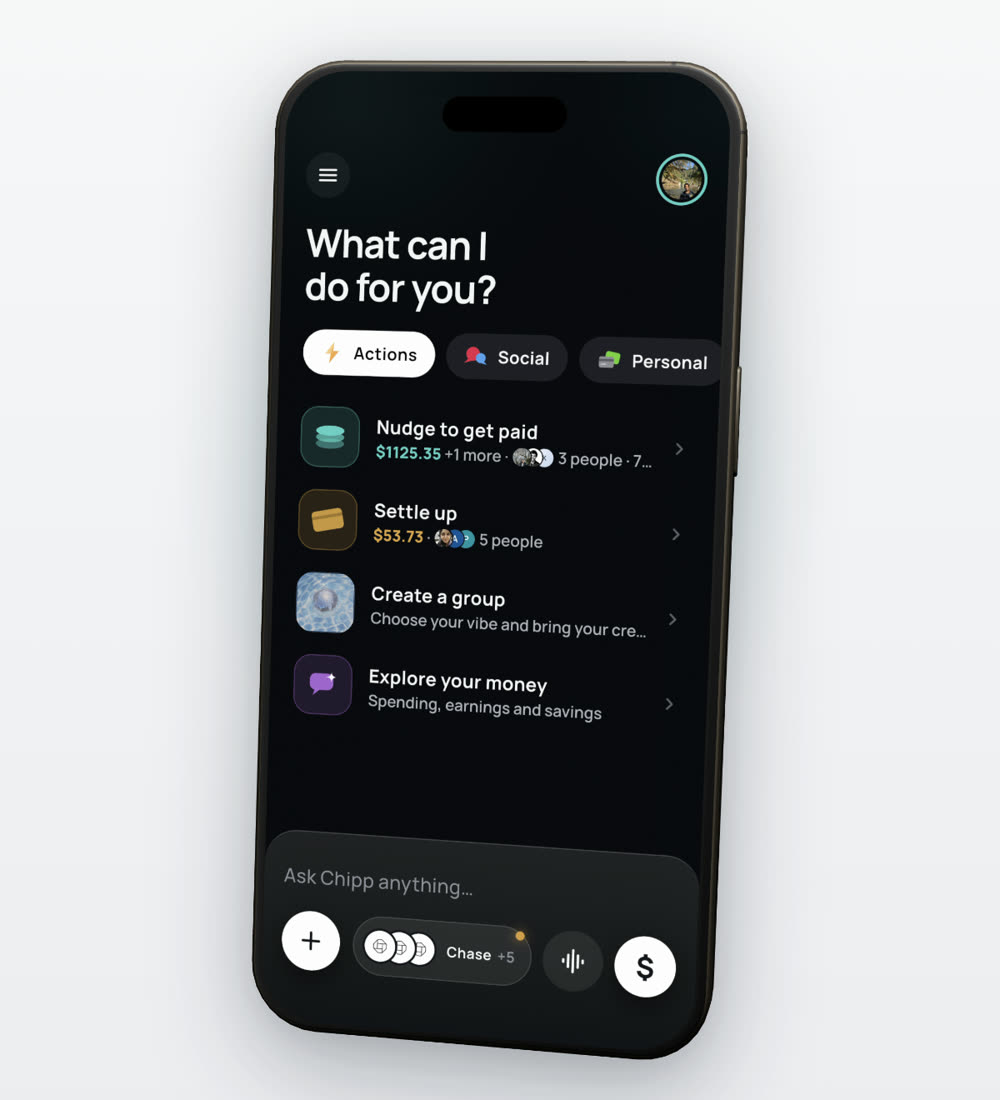
Every Chipp group has a chat, and the assistant in it can read screenshots. Attach your Splitwise Balances screenshots in the group chat and write something like:
- "Add these balances from Splitwise."
- "These are our Splitwise balances as of today. Add them to this group."
Chipp reads the screenshots and adds the balances to the group. Look over what it added before anyone settles up, the same way you would on the review screen. This route is handy when someone else in the group took the screenshots and dropped them in the chat.
What each imported balance becomes
Each imported balance becomes an expense paid by the person who is owed, owed in full by the person who owes. Your history stays in Splitwise; Chipp just picks up where it left off.
A worked example. The "Elm St" group in Splitwise shows:
- Bea owes Alex $42.50
- Cam owes Alex $18.00
- Dev owes Bea $30.00
After import, the Chipp group has three expenses:
- $42.50 paid by Alex, Bea's share $42.50
- $18.00 paid by Alex, Cam's share $18.00
- $30.00 paid by Bea, Dev's share $30.00
Net positions in Chipp: Alex is owed $60.50. Bea owes $12.50 overall ($42.50 she owes minus the $30 Dev owes her). Cam owes $18. Dev owes $30. Check: $12.50 + $18 + $30 = $60.50, the same as Splitwise. When Cam settles up, the $18 clears exactly as if the debt had always lived in Chipp.
Simplify debts on or off: what it changes
Splitwise has a group setting called simplify debts. When it is on, Splitwise rearranges who pays whom so the group needs fewer payments. It never changes how much anyone is owed or owes in total, only the routes.
Say the underlying debts are Bea owes Alex $30 and Dev owes Bea $30. With simplify debts off, the Balances screen shows both. With it on, Splitwise shows one line: Dev owes Alex $30, and Bea is square.
Whatever the screen shows is what you import. Both versions leave Alex at +$30, Bea at $0 and Dev at −$30, so either is correct. The difference is practical:
- Import the simplified view if your group already treats it as the plan, for example Dev has been told to pay Alex.
- Turn simplify debts off before taking screenshots if people have private arrangements, such as Bea and Dev settling with each other in cash.
Pick one and tell the group which, so nobody pays twice.
Checks to do after importing
- Compare each person's total in Chipp with their total in Splitwise. They should match to the cent.
- Post the list in the group chat and give people a day to flag anything.
- Leave a final note in the Splitwise group: "Moved to Chipp on 18 Oct. Please don't add expenses here."
- Do not delete the Splitwise group straight away. It is your record if someone asks where a number came from.
Common snags, and how to fix them:
- A name didn't match. Splitwise nicknames like "J" or "Flat 2B" may not match anyone in the Chipp group. Fix the match on the review screen before importing, not afterwards.
- Someone has moved out. Add them to the Chipp group so their balance has a home. Once they have paid or been paid, remove them.
- More than one currency. Check each balance kept its own currency. Do not convert amounts by hand unless the group agrees on the rate.
- A total is off by a few cents. Usually a screenshot was cropped or a line was read twice. Compare the review list with your screenshots line by line, then edit the one balance that is wrong.
- Someone disputes a number. Open the Splitwise group or your export and find the expenses behind it. Agree on the fix, then edit that one balance in Chipp.
- If you are still deciding where to go, see Splitwise alternatives compared, and for the difference between tracking apps and payment apps, Splitwise vs Venmo.
Questions people ask
Can you export data from Splitwise?
Yes. Open the group in Splitwise, go to the group's settings and choose Export as spreadsheet. You get a CSV file of the group's expenses with a column per person, which opens in Excel, Numbers or Google Sheets. If you only need current balances, a screenshot of the group's Balances screen is quicker and works just as well for importing.
Will my Splitwise expense history come over?
What comes over is where each person stands today. Each balance becomes one expense in Chipp, paid by the person owed and owed by the person who owes. Your detailed history stays in Splitwise and in your spreadsheet export, so keep that file as your record of past expenses in case a question comes up later.
Do I need to settle everything before leaving Splitwise?
No. That is the point of importing balances: open debts carry over, and people settle them in the new app when they are ready. It does help to clear tiny amounts first and to agree on a cut-off time, so nobody adds an expense in Splitwise after you have taken the screenshots or exported the file.
Does simplify debts change what I owe?
No. Simplify debts only changes who pays whom, so the group needs fewer payments. Everyone's total owed or owing stays the same. It does change what the Balances screen shows, and therefore what you import, so decide as a group whether to keep it on or turn it off before taking screenshots.